

Your digital privacy isn’t just about your personal details being shared and sold online, it’s also about what people can see.
We are excited to announce a new privacy control for our Extended and Ultimate plans: Map Blurring. You can now request to blur the street-level imagery of your home on Google Maps and Apple Maps directly through your Optery account.
Why Blur Your Home?
Street-level imagery is convenient for navigation, but it can expose details about your life that you may prefer to keep private. By blurring imagery of your home, you add a layer of physical privacy to the data privacy Optery already provides.
How It Works
This is an opt-in only feature. We will only process your map blurring requests when you explicitly ask us to.
- Eligibility: Available to Extended and Ultimate plan subscribers who own or have legal authority to blur their home address.
- Coverage: Currently supports Google Maps and Apple Maps, and we are constantly evaluating additions to the maps services we cover.
- The Process: Once enabled, Optery submits requests to these providers to blur the visual representation of your primary home address listed in your Optery profile.
⚠️ Important: This Action Is Irreversible
Before you enable this feature, please understand that blurring is permanent.
- Once the blur is applied, Optery cannot reverse it.
- If you change your mind later, Optery is unable to help restore the street-level imagery of your home.
- Requirement: You must be the owner of the home or have legal authority over it to request a blur.
How to Enable Map Blurring
If you are ready to remove your home’s image from public view:
- Log in to your Optery Account.
- Navigate to your Account tab where you will find Maps Preferences.
- Locate “Blur your home on maps sites (Google, Apple)” and check the box.
- Read the confirmation modal carefully and click Confirm.
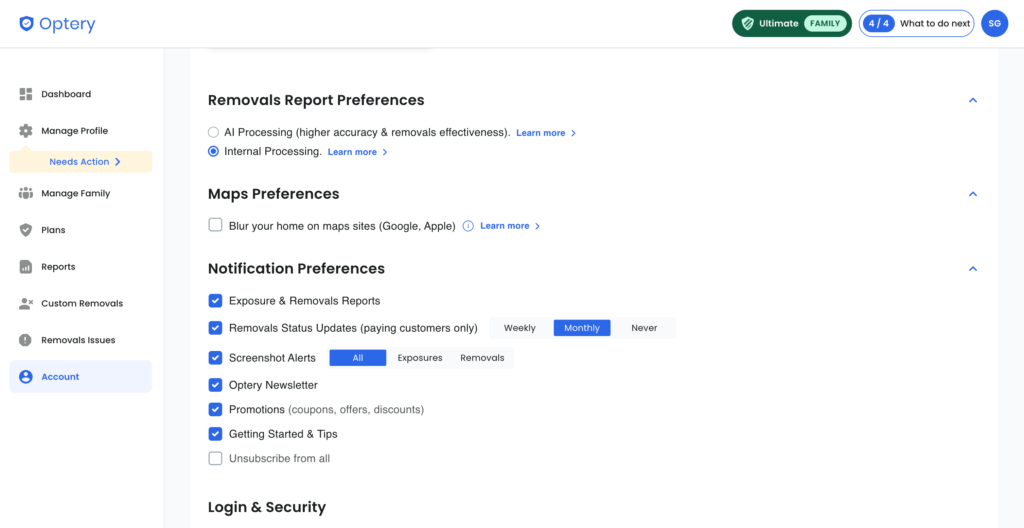
View of where you will find the option to blur your home on maps under the Maps Preferences section of your Account.
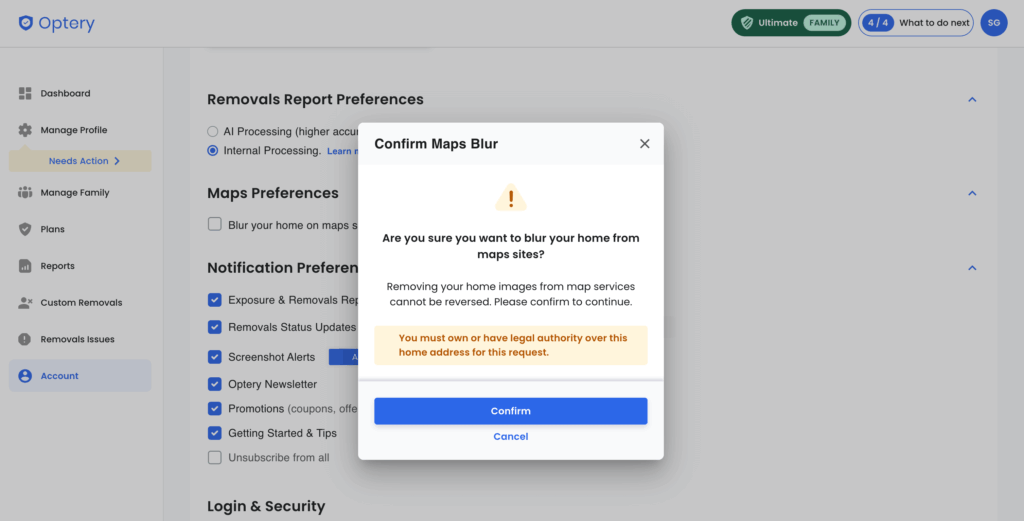
You will be asked to Confirm your removal request upon selecting to blur your home on maps services.
Once confirmed, the map services will appear in your Data Brokers table, and we will begin processing the removal requests.
Note: if you do not currently have an Extended or Ultimate plan, you can upgrade your plan in a few short steps to take advantage of enhanced features like Map Blurring.
A Note on Limitations
While this feature blurs the “live” view on Google Maps and Apple Maps, please note that some third-party archives or historical view features may still hold older images. Additionally, crowdsourced map data (such as Mapillary) is not covered by this feature.
Ready to take your privacy to the street level? Go to your Optery account today to review your plan and enable Map Blurring.